Step-by-step guide for specialists (English teachers, fitness, yoga, pilates trainers, and other professionals who receive bookings from clients)
Let's get started! 😊
When you first launch the bot, you will be asked to set up your schedule. This will take a couple of minutes.
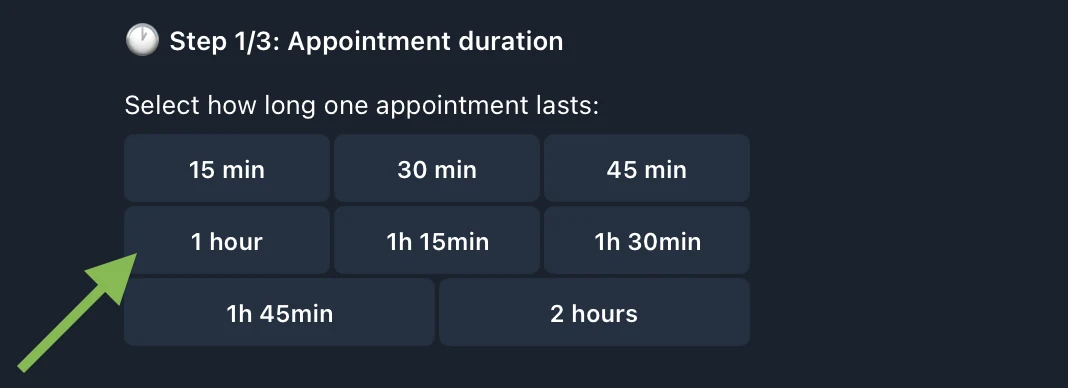
Choose how long one booking lasts.
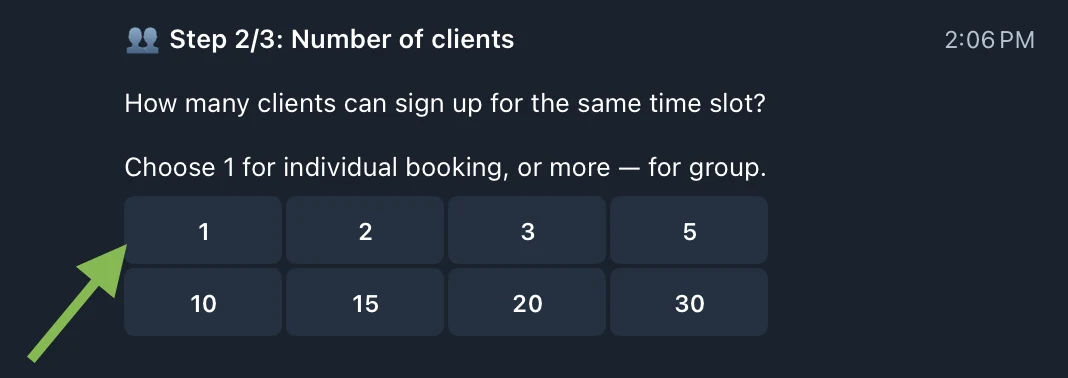
How many clients can book the same time slot?
Choose 1 for individual sessions, or more — for group sessions.
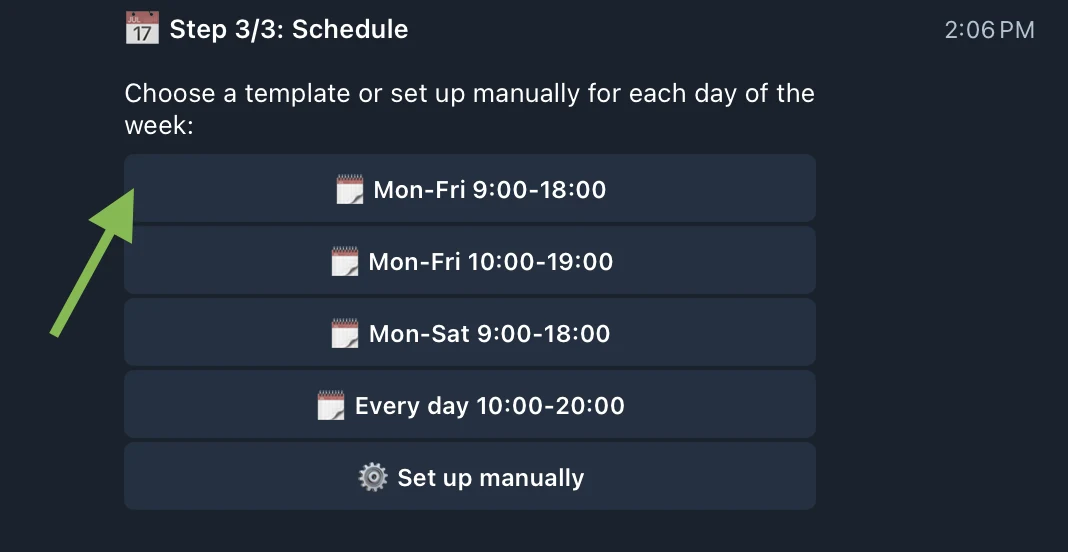
Choose a ready template if it suits your schedule, or set up the schedule manually for each day of the week.
If you choose to set up the schedule manually for each day of the week, see the section below ⚙️ Manual setup 👇
Your schedule is saved. Now you can send the link to clients for booking.
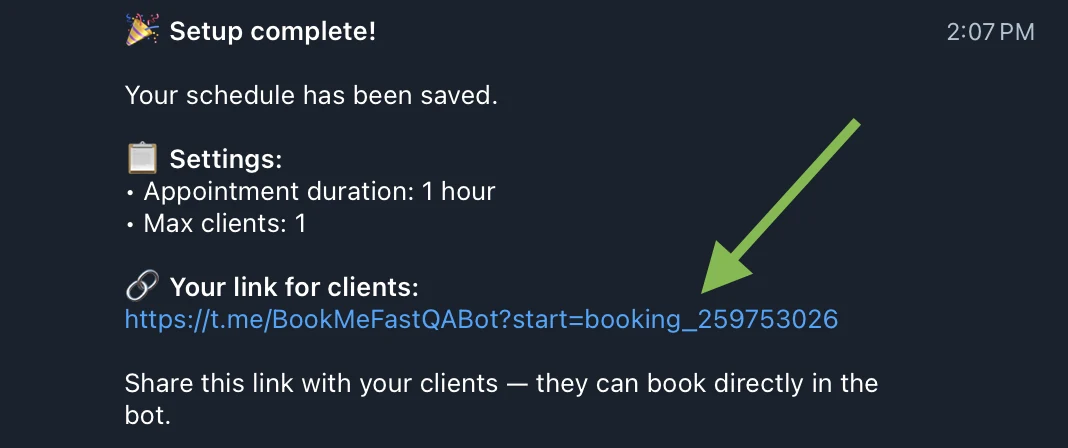
When clients book, reschedule, or cancel appointments — you instantly receive notifications directly in the bot.
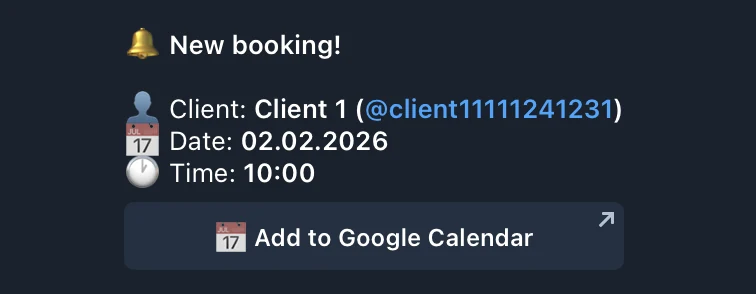
1 New booking
You will see the client's name, date, and time of the booking.
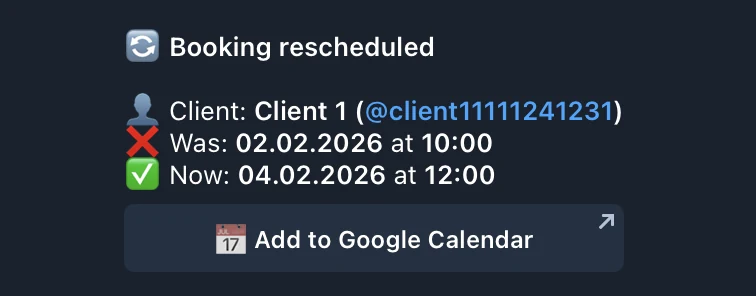
2 Booking rescheduled
You will see which booking was rescheduled and to when.
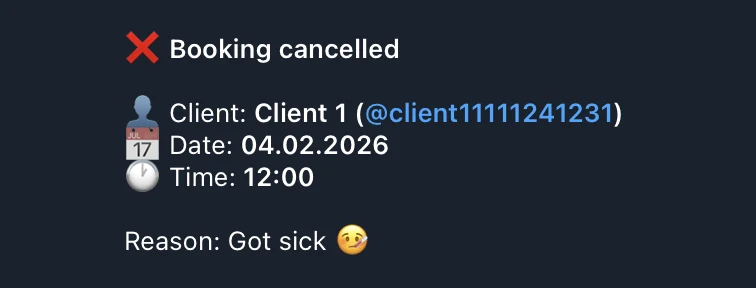
3 Booking cancelled
You will see the details of the cancelled booking and the reason provided by the client.
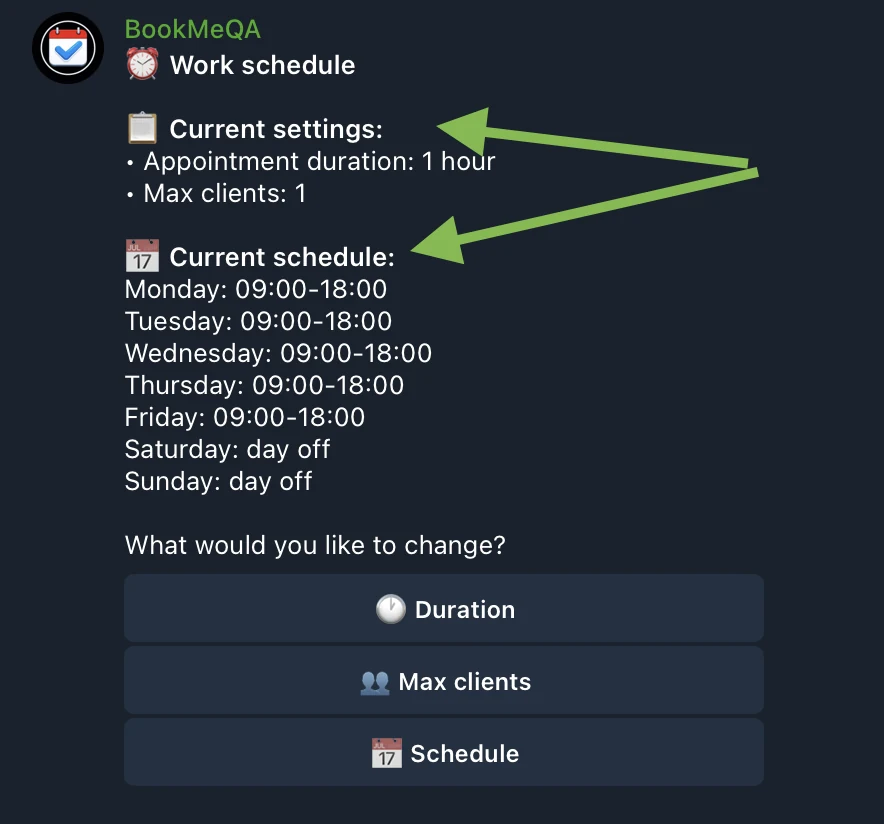
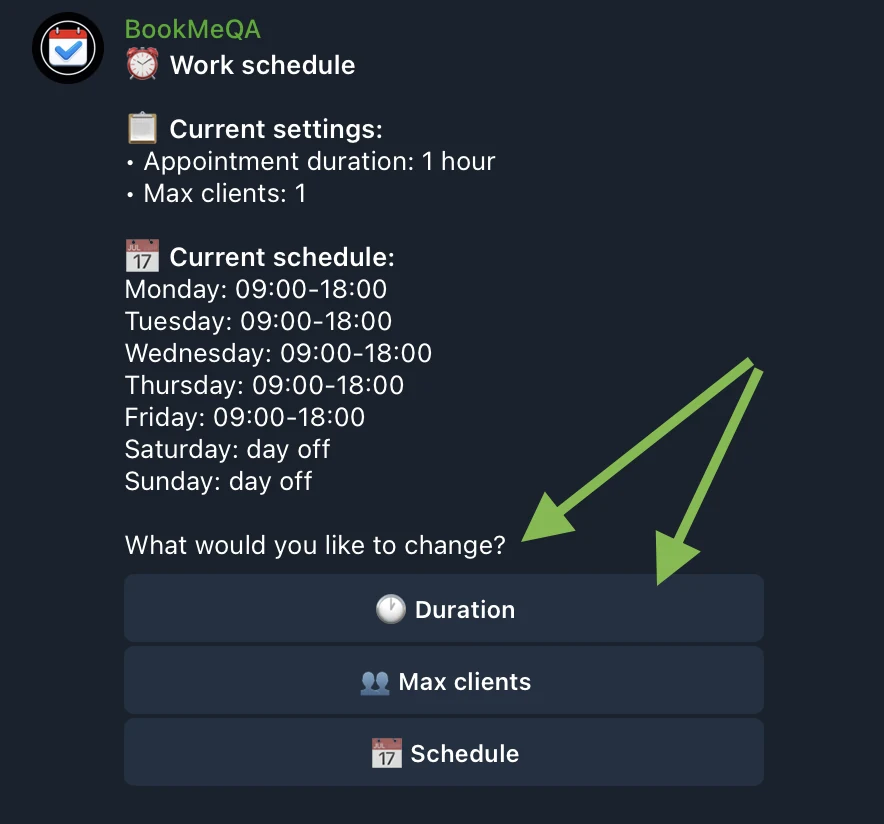
Click "⏰ Work Schedule Settings" in the menu. Here you can always view your current work schedule settings and change any parameters you configured earlier.
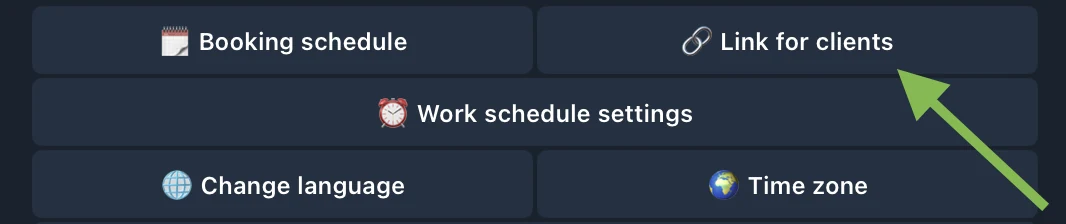
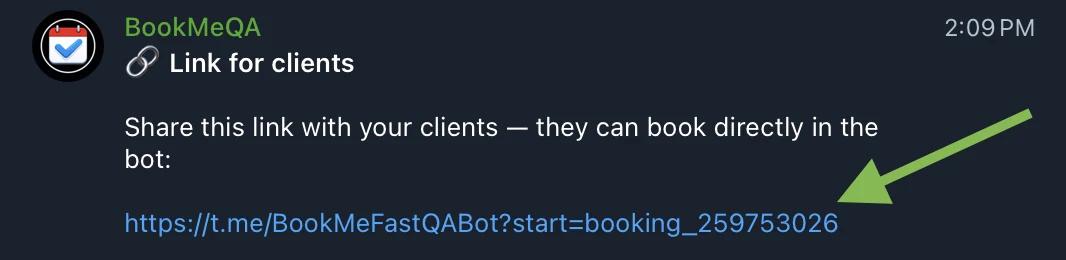
Click "🔗 Link for clients" in the menu to get your personal link. Send it to your clients — they can use it to book appointments with you.
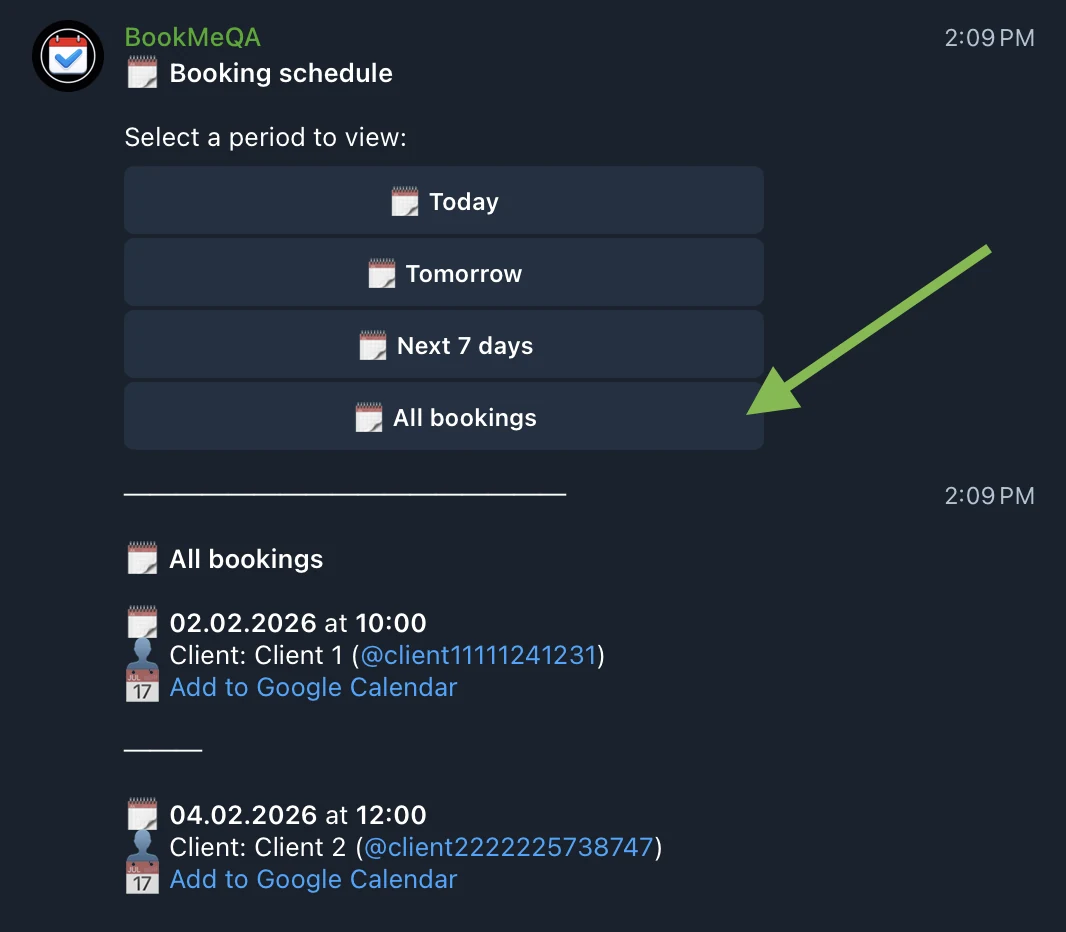
To view upcoming bookings, click "🗓 Booking Schedule" in the menu. Select a period and you will see a list of all bookings with date, time, and client name.
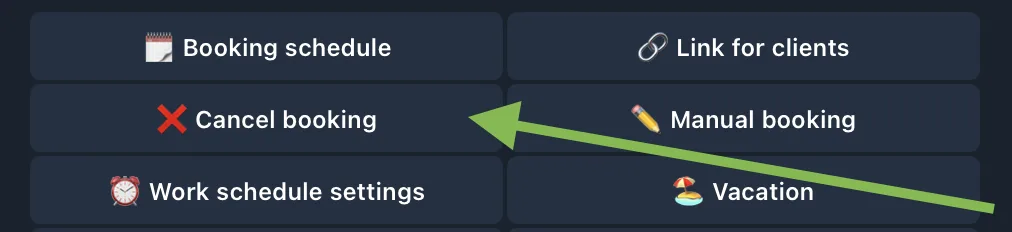
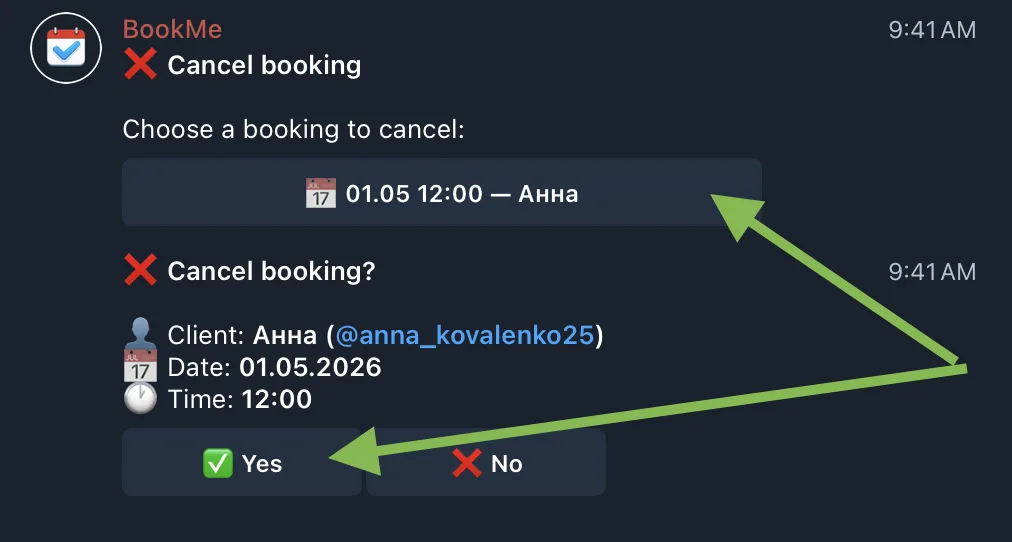
Useful when a client books and disappears (no reply).
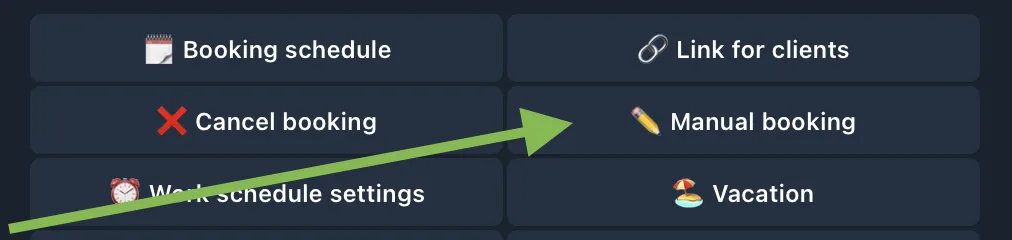
If a client doesn't have Telegram, you can book them yourself. The slot is taken in your schedule like any regular booking.
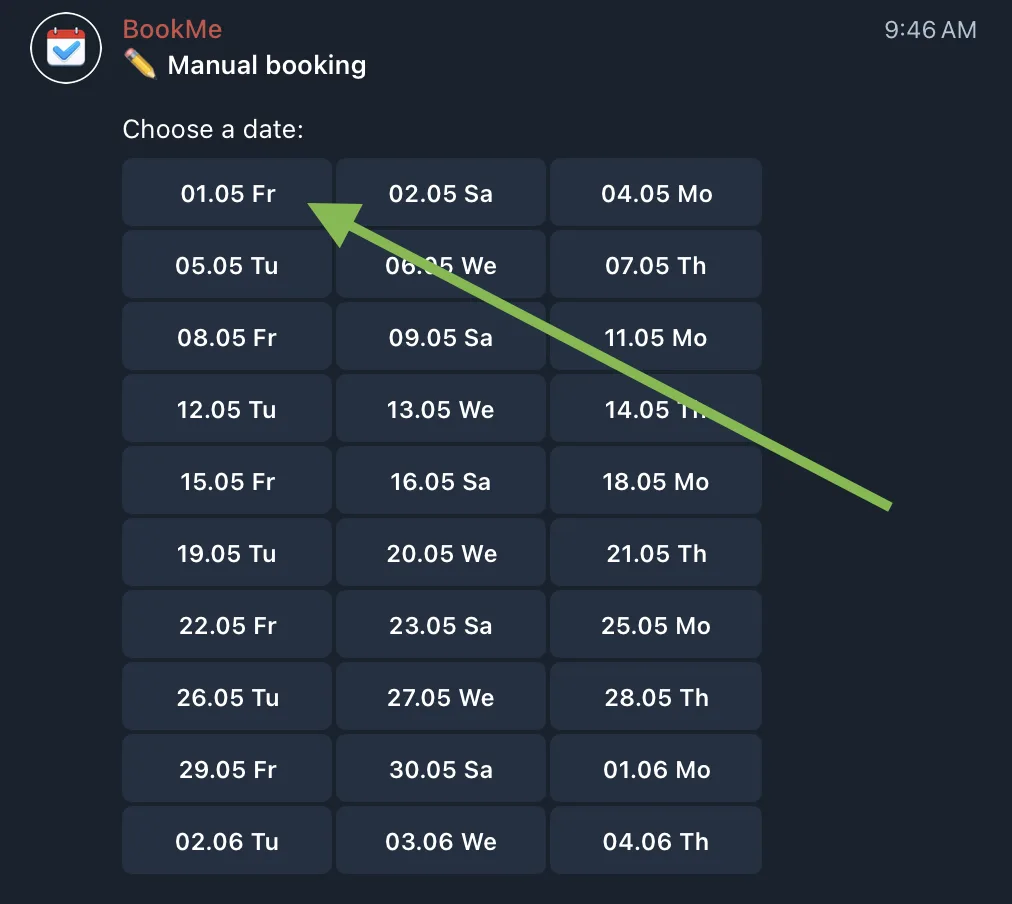
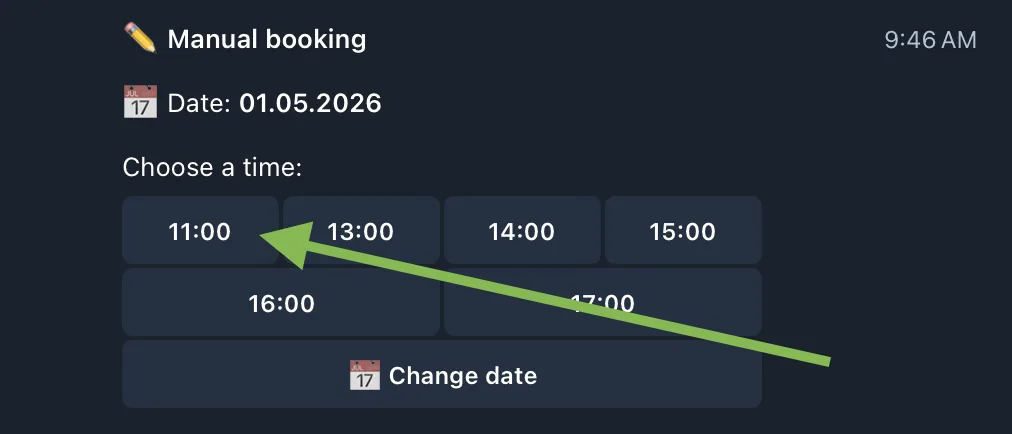
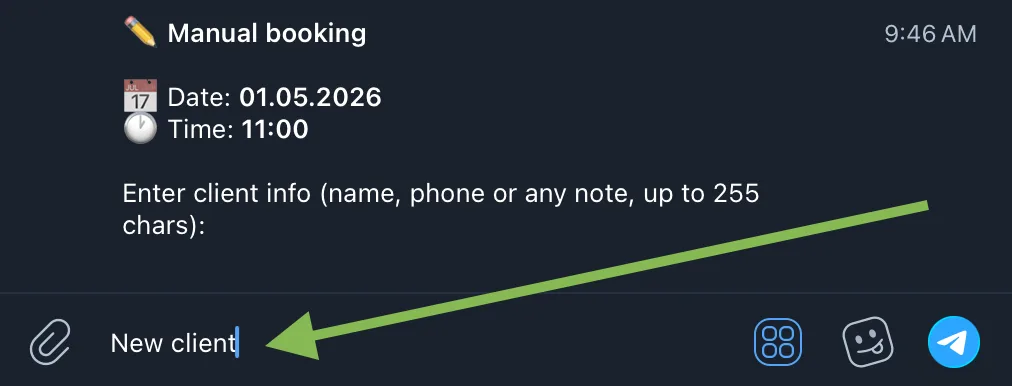
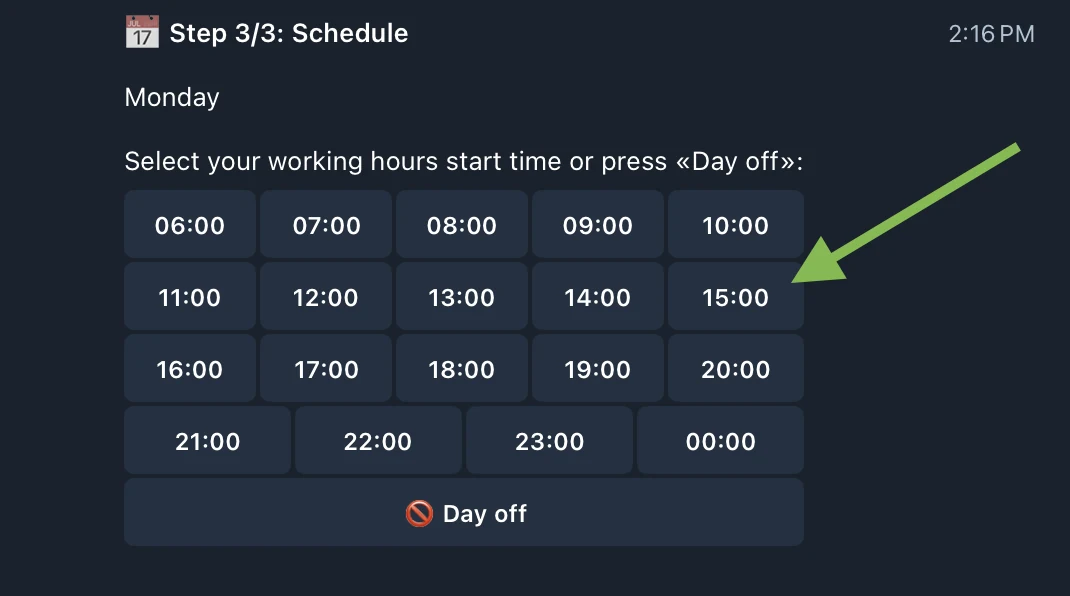
Click on the time when your workday begins. Or click "🚫 Day off" if you don't work on this day.
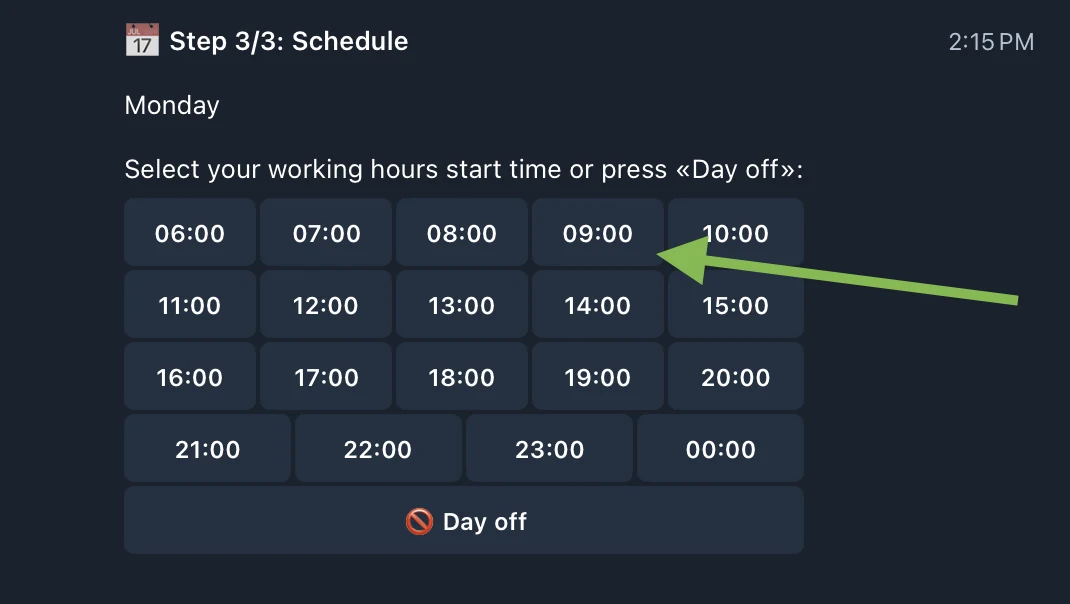
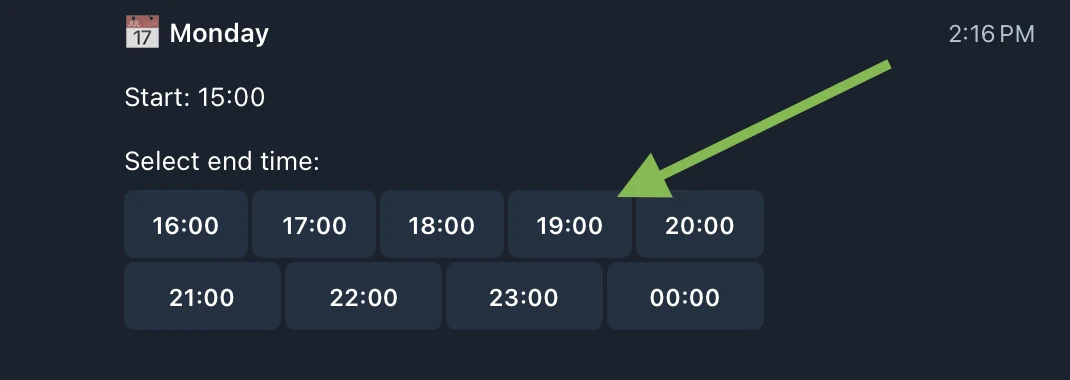
After choosing the start time, specify when the work period ends.
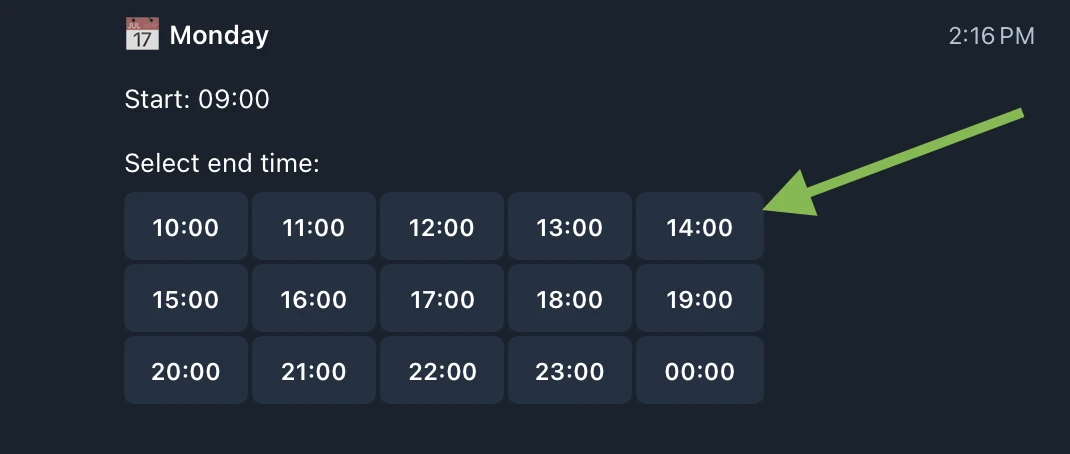
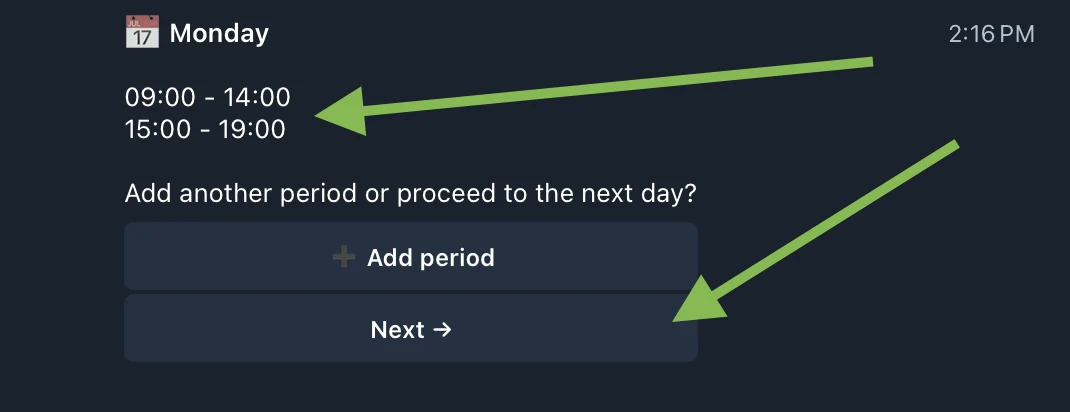
If you have a break during the day, you can add multiple work periods. For example:
Monday: 09:00–14:00, 15:00–19:00 This means you work in the morning from 09:00 to 14:00, then a break, and again from 15:00 to 19:00.
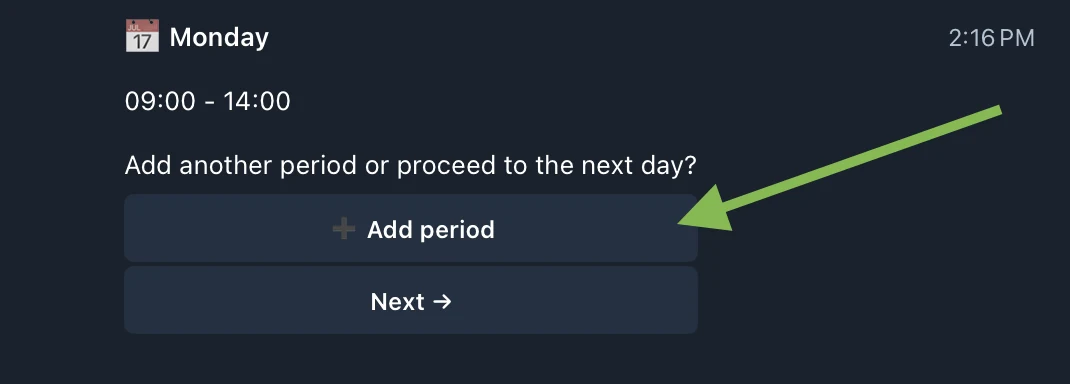
Click "Next →" to set up the next day, or "✅ Finish" when you have configured all the necessary days.